
Quick answer: a Pinterest product pin is a pin that pulls your product’s name, price and stock straight from your store and keeps them up to date. You get them by connecting a catalog (the Pinterest app for Shopify or WooCommerce) or by adding product tags to your product pages. If yours show no price, it’s usually one of four things: you’re not a Verified Merchant yet, the product is out of stock, the price doesn’t match your site, or Pinterest’s data is out of date.
You connected your shop, you made the pins, you even picked a nice photo (look at you), and then you open one of them and it looks exactly like every other pin on Pinterest. No price, no stock, nothing that says you can actually buy this thing. So what’s going on?
Most of the time nothing is broken. Pinterest just has a few conditions for showing the shopping details, and nobody tells you about them when you set things up. So this guide covers what product pins are, the two ways to get them, how to check if yours really are product pins, and the four checks to run when the price won’t show.
What Is a Pinterest Product Pin (And Is It the Same as a Shoppable Pin)?
A product pin is a pin that knows it’s a product. Pinterest describes it as a type of rich pin that shows the most up-to-date price, availability, product title and description from your site (Pinterest Help Center), and the nice part is that you don’t type any of that in. It comes from your store, so when you change a price or sell out, the pin catches up on its own, usually within 24 hours.
“Shoppable pins” is just what most people call them. You’ll also see “buyable pins” in older blog posts, which was the name for buying without leaving Pinterest years ago. Today a product pin sends the shopper to your product page, and they check out on your site like any other customer.
Some product pins also get a little badge. Pinterest gives a “Best seller” badge to products that are among the most bought in their category across different stores, and a “Popular” badge to the most clicked product pins in a category. You can’t apply for those, they’re earned (so, sell more, I guess).

Product Pins vs Regular Pins: What’s Actually Different
Here’s the short version, side by side.
| Regular pin | Product pin | |
|---|---|---|
| What it shows | The title and description you typed | Product name, price and stock (when Pinterest’s conditions are met) |
| Where the info comes from | You | Your store |
| Updates by itself | No | Yes, usually within 24 hours |
| Can run as a shopping ad | No | Yes, if it comes from a catalog |
| Where it links | Any page you choose | The product page |
That ads row trips people up, so quickly: Pinterest only lets product pins that come from a catalog run as shopping ads. If you ever want to try shopping ads on Pinterest, that’s a good reason to go the catalog route from the start.
How to Get Product Pins on Your Store (2 Ways)
There are two ways in, and you can absolutely do both.
Way 1: Connect a Catalog (Best for Most Stores)
A catalog is your whole product list, which Pinterest reads and turns into product pins, one for every product. On Shopify that’s the free Pinterest app, and on WooCommerce it’s the Pinterest for WooCommerce plugin.
- Make sure you have a Pinterest business account with your website claimed.
- Install the Pinterest app (or the WooCommerce plugin) and connect it to your Pinterest account.
- Let it upload your products. Your catalog then shows up in Pinterest under Ads, then Catalogs.
- Check for errors and fix them. My guide on how to set up a Pinterest catalog walks through every screen, plus the error codes Pinterest throws at you.

Way 2: Add Product Tags (Rich Pins)
Product tags are a few lines of code on your product pages that tell Pinterest “this page is a product, here’s the price”. Pins saved from those pages pick up the product details, and Pinterest says older pins linking to those pages turn into rich pins too. I show how to check and add them in my guide to rich pins for Shopify and WooCommerce. If you sell on Etsy, you don’t need to do anything, because Pinterest pulls the info for you.
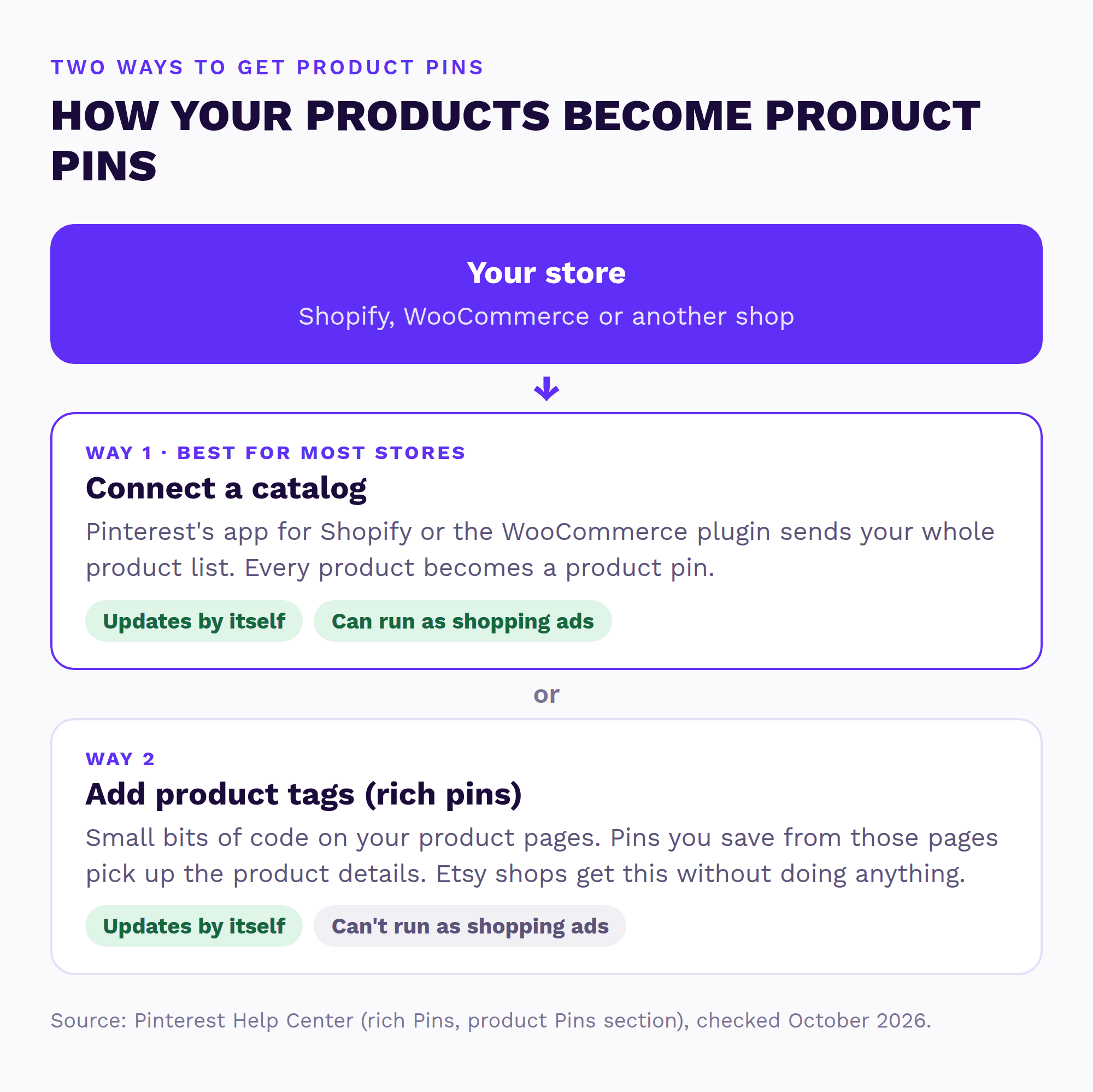
So which one? If you’re on Shopify or WooCommerce, start with the catalog, because it covers every product at once and it’s the only way to run shopping ads later. Product tags are a nice extra on top, so pins other people save from your site look like products too.
How to Check If Your Pins Are Really Product Pins
Before you fix anything, check what you actually have. It takes about five minutes.
- Open one of your product pins on desktop. A product pin shows the product name from your store, and (if you qualify) the price and stock.
- In Pinterest, go to Ads, then Catalogs. If your products are listed there with no errors, your catalog is doing its job, even if the price isn’t showing yet. For most stores, this is all you need to check.

Not using a catalog? Then it’s the product tags that matter, and my rich pins guide shows the easy way to check them (no code reading needed, promise).
If the name comes through but the price doesn’t, you DO have product pins, they’re just missing the shopping details. Which brings us to the bit you probably came here for.
Why Your Product Pins Show No Price (The 4 Usual Reasons)
Pinterest’s help page says price and stock only show on a product pin when the product is in stock, the price is accurate, Pinterest has updated the data recently and you meet its merchant guidelines. On top of that, a Pinterest moderator in its business community says price and availability on pins is “now a feature reserved for Verified Merchants” (Pinterest Business Community). So here’s how to check each one, starting with the most likely.

1. You’re Not a Verified Merchant (Yet)
This is the big one for small stores. Verified merchants get a blue checkmark on their profile and pins, so if you don’t have one, this is probably your answer. According to Pinterest’s Verified Merchant Program page, you need a business account that’s at least three months old, a website that’s at least nine months old, a catalog that meets the guidelines, and a Pinterest tag that has sent page visit, add to cart and checkout events at least once every 7 days over the last 30 days. Once you tick all of that, you’re verified automatically, no application form. (Yes, that means a brand-new store has to wait. I don’t make the rules.)
One honest note: the program page itself lists the checkmark as the main perk and doesn’t mention prices. The “price is for Verified Merchants” part comes from Pinterest’s community team, so take it as Pinterest’s answer to store owners, not a written rule. If you’re working toward the checkmark, my guide on how to become a Pinterest Verified Merchant walks through every requirement and the usual reasons stores get rejected.
2. The Product Is Out of Stock
Pinterest only shows the details for products that are in stock. Check the stock in your store first, then in your catalog, because a product that’s sold out (or marked sold out by mistake, it happens) loses its price on Pinterest.
3. The Price Doesn’t Match Your Site
Pinterest needs the price on your pin to match the price on your product page. Sales, currency settings and variants are the usual troublemakers here. Fix the price in your store, let the catalog sync again, then check Catalogs for errors.
4. Old Data or Merchant Guidelines
Pinterest’s merchant guidelines say it needs current price and stock info, from within the last seven days, and changes can take up to 24 hours to show. So if you just fixed something, give it a day. The same guidelines also ask for an easy-to-find return policy with your contact details, and a proper website without broken links or pages hidden behind a login. Worth a quick look if everything else checks out.
Not Verified Yet? What to Do While You Wait
If your store is newer than nine months, you can’t speed up the clock, but you can make sure your product pins still do their job (and that you’re ready the day you qualify).
- Keep your catalog error-free, so there’s nothing to fix when the time comes.
- Check your Pinterest tag is sending page visits, add to carts and checkouts. That’s one of the requirements, and my Pinterest analytics guide shows how to check it.
- Link every pin to the product page, never your homepage. Someone who clicks a tray pin wants the tray, not your About page.
- Put the product name and what makes it special (material, size, color) in the pin title and description, so shoppers know what they’re looking at even without a price.
- Fix your return policy and contact details now, since Pinterest’s merchant guidelines ask for both.
None of this needs the checkmark, and all of it helps your pins get clicked right now.
Not sure why your pins look plain?
Send me your store and I’ll check your Pinterest account, catalog and product pins myself, then send a short report and video with the three fixes I’d make first. Free, within 1 business day, no call needed.
Where Product Pins Show Up Now (Hint: Not a Shop Tab)
Older guides still talk about a “Shop” tab on your Pinterest profile. That tab was removed back in 2023, so if you’ve been hunting for it, it’s not you. Your product pins show up in Pinterest search, in people’s home feeds and under related pins, which is where shoppers find products anyway. If you want them on your profile too, save them to a public board, and name those boards after what people search for (my guide to keyword-named boards shows how).
How to Make Product Pins People Actually Click
- Use photos of the product in a real setting, not just a white background, because a styled shot looks like an idea and ideas get saved. More in my guide to product pin design that gets clicks.
- Use product titles people actually search for. “Travertine serving tray” beats “TRAY-01” every single time (my Pinterest SEO for ecommerce guide covers where keywords go).
- Pin fresh photos of your products regularly, without hammering the same link all day. Here’s how often to pin the same product.
Pinterest Product Pins FAQ
What is a product pin on Pinterest?
A product pin is a pin that pulls a product’s name, price and stock from your store and keeps them up to date. It links to the product page, so people can buy straight from your site.
Are shoppable pins and product pins the same thing?
Yes. “Shoppable pins” is the everyday name. Pinterest’s help pages call them product pins, which are a type of rich pin.
What happened to buyable pins?
Buyable pins were an older Pinterest feature that let people buy without leaving Pinterest. Today the shopping pins are product pins, and they send shoppers to your own product page to check out.
Do product pins cost money?
No. Connecting a catalog or adding product tags is free, and your product pins show up organically. You only pay if you choose to promote them as shopping ads.
Why don’t my product pins show the price?
Pinterest shows price and stock only when the product is in stock, the price matches your site, the data is recent and you meet its merchant guidelines. Pinterest’s community team also says price and availability on pins is now reserved for Verified Merchants, so check that first.
Can I get product pins without Shopify?
Yes. WooCommerce stores can use the Pinterest for WooCommerce plugin, any website can add product tags to its product pages, and Etsy shops get product details on their pins automatically.
Can someone set up product pins for me?
Yes. Send me your store and I’ll check your Pinterest account, catalog and product pins myself. Within 1 business day, you get a free Shelf Check: a short report and video with the three fixes I’d make first.
Want your product pins sorted?
I’ll look at your Pinterest and catalog myself and send a short report and video with the three fixes I’d make first. Free, within 1 business day, no call needed. If your catalog, tag and boards need a proper sort-out, my Setup Sprint fixes all three for you.
Sources (checked October 2026)