
Quick answer: Good Pinterest pin design for ecommerce puts the product first. Use a 2:3 pin (1000 × 1500 px) and let the product fill about half of it. Add three to seven big words and a small logo at the bottom center. Tag your products right in the pin, link it straight to the product page, and let your catalog show the price and stock.
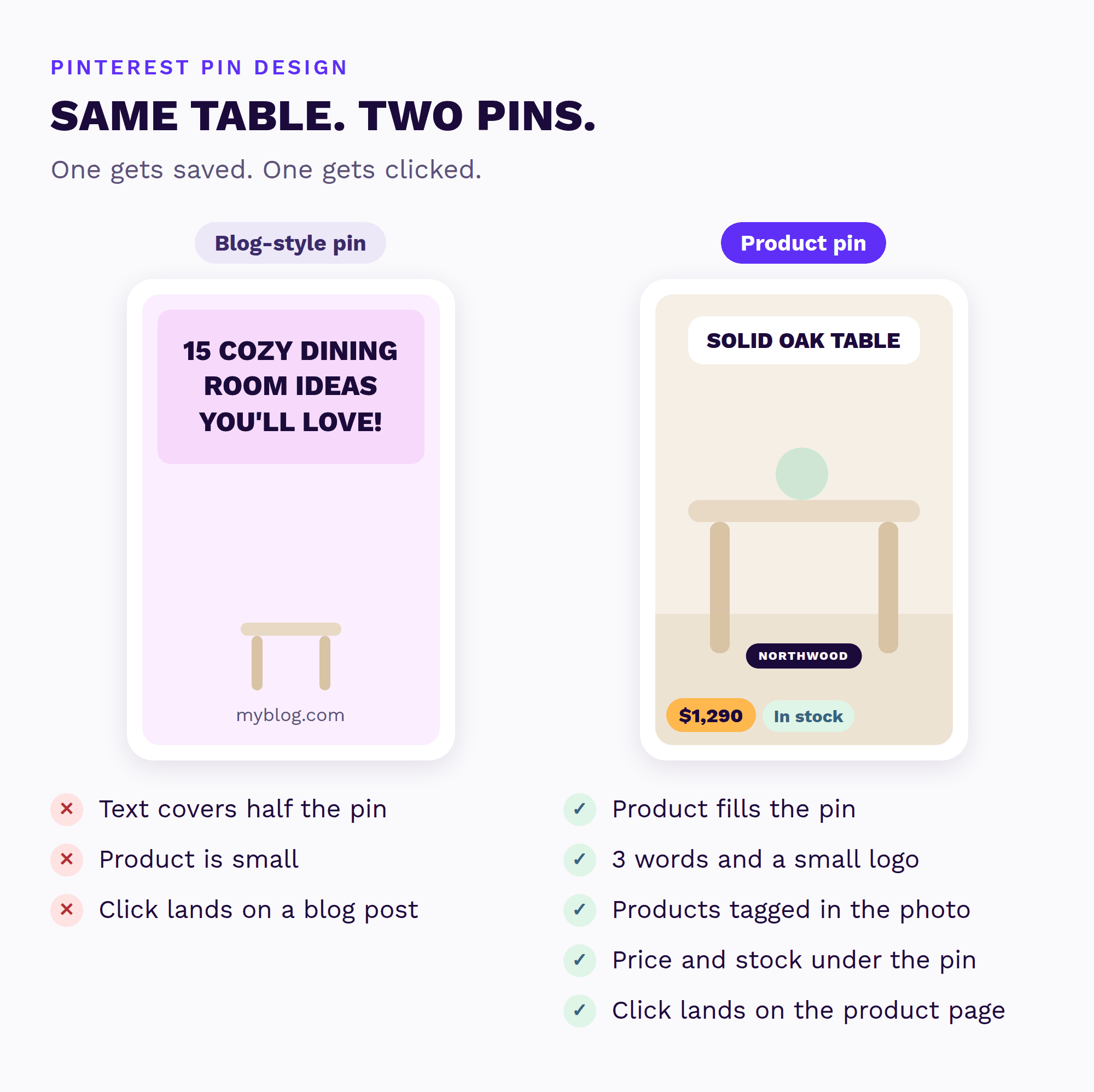
Most pin design tips online are written for bloggers. They love big text, pastel boxes and titles like “15 Cozy Dining Room Ideas.” That style gets saves. But if you sell a solid oak dining table, you want something else. You want the click, and then the sale.
So this guide is about Pinterest pin design for online stores. I’ll cover the right size, the photo question (lifestyle or white background), price, text and logo. Then the four pin types I’d make for every product, and a simple template you can copy in Canva.

What Makes a Product Pin Get Clicked?
A product pin gets clicked when people can see the product, understand what it is in a second, and trust where the click goes. Pinterest’s own advice for brands is to make your products the star and show people using them in real settings. I agree, and I’d add three more rules:
- Short text. Three to seven words that say what it is, like “Solid oak dining table.”
- A small logo. Pinterest says your logo or brand name should be visible on every ad. I keep it small, at the bottom center.
- The right link. Send the click to the exact product page, not your homepage.
- A real photo. Your own product, shot well. People on Pinterest scroll past anything that looks like an ad template.
Most people use Pinterest on their phones, so check every pin on your phone before it goes live. If you can’t read the text at that size, it’s too small or too long.
What Size Should a Pinterest Pin Be?
A Pinterest pin should be 2:3, which is 1000 × 1500 pixels. That’s the size Pinterest recommends in its product specs, and pins taller than 2:3 can get cut off in the feed.
| Spec | What to use |
|---|---|
| Ratio | 2:3 (portrait) |
| Size | 1000 × 1500 px |
| File type | JPG or PNG |
| Max file size | 20 MB on desktop, 32 MB in the app |
| Pin title | Up to 100 characters (the first 40 or so show in the feed) |
| Description | Up to 800 characters (it doesn’t show in the feed, but it helps Pinterest understand the pin) |

Want every size in one place, video pins too? My Pinterest size guide has the full list.
Lifestyle Photo or White Background?
Use lifestyle photos for most pins, and white background photos when shoppers need to see the details. In 2025 Pinterest itself told brands it recommends lifestyle imagery as the background for product pins, because it helps them show up for more searches.
Here’s how I’d split it by category. This is my own rule of thumb, not a Pinterest rule:
| Product type | Best main photo | Why |
|---|---|---|
| Furniture and home decor | Lifestyle (in a room) | People search for rooms and styles, like “japandi living room” |
| Bedding and rugs | Lifestyle | Texture and color read better on a real bed or floor |
| Fashion | Lifestyle (worn) | Shoppers want to see the fit |
| Jewelry | Both: close-up on white, plus worn | Small details get lost in a busy room |
| Beauty and skincare | Both: product on a clean background, plus in use | Shade and label need to be clear |
| Gifts | Lifestyle (wrapped or in use) | Gift searches are about the moment, not the box |
You don’t have to pick just one. Make both, and let your Pinterest Analytics tell you which one gets more outbound clicks for your store.
Do your pins go to product pages, with prices?
I’ll look at your store and Pinterest myself and send a short report and video with the three fixes I’d make first. Free, within 1 business day, no call needed.
Should Your Pins Show the Price?
Yes, but let Pinterest show it, not your image. When you connect a product catalog, Pinterest makes product pins from it. They show pricing, availability and other product details and keeps them up to date. So the price sits right under the pin, and it’s always correct.
If you write the price on the image and then run a sale, the pin is wrong. I keep prices off the image and let the catalog do it. The one exception is a sale pin with a clear end date, like “30% off until Sunday.”
If your pins don’t show a price yet, start with my guides to Pinterest catalogs and rich pins. They work for Shopify, WooCommerce and most other platforms.
Tag Your Products Right in the Pin
You can also add your products inside a pin, not just link to one page. Pinterest lets you tag up to 20 products in a pin. People tap the pin and see each product you tagged, so they can shop the whole photo.
This is perfect for lifestyle pins. A dining room photo can tag the oak table, the bench and the linen runner. One pin, three ways to buy. You can tag products that are already on Pinterest, like the ones from your catalog, or add a product link.
One small catch: if you tag products with stickers, you can tag up to five, and you can’t edit them after you publish. So check your tags before you hit publish.
How Much Text Should You Put on a Pin?
Less than you think. Three to seven words is plenty for a product pin. Pinterest suggests a simple stack: the visual in the middle, key text at the top and extra details at the bottom.
- Use one bold, easy font, big enough to read on a phone.
- Say what it is (“Washed linen duvet cover”) or one clear benefit (“Machine washable”), not both.
- Keep the bottom right corner clear, because Pinterest puts its own buttons there.
- Skip clickbait like “You won’t believe this table.” Shoppers want facts.
The words that matter most for search go in the pin title and description, not on the image. My Pinterest keyword research guide shows how to find them.
4 Pin Types Every Product Should Have
If you’re wondering what to post on Pinterest as a store, start with these four pin types for each of your best sellers:
| Pin type | What it shows | Links to |
|---|---|---|
| Product pin | The product, from your catalog, with price and stock | Product page |
| Lifestyle pin | The product in a real room or outfit, with each product tagged | Product page |
| Detail pin | A close-up: the wood grain, the clasp, the fabric | Product page |
| Idea pin | A styling idea, like “How to style a round coffee table” | Collection page or a guide on your site |
Product pins from your catalog are made for you. The other three you design yourself. If you sell a lot, my guide on how many pins to make per product helps you plan it. Got good product video? Video pins work too.
A Simple Pinterest Pin Template (Canva)
You don’t need a designer to make good pins, just one Pinterest pin template you reuse. A free Canva account works fine. Here’s the template I’d set up once and then reuse for every product:
- Create a new design at 1000 × 1500 px (Canva also has a ready-made “Pinterest Pin” size).
- Drop your product photo in so it fills the whole pin.
- Add a small text box at the top: three to seven words, bold, in your brand font.
- Put your logo small at the bottom center.
- Leave the bottom right corner empty.
- After you upload, tag the products in the photo.
- Save it as a template, then swap the photo and words for each product.
- Export as JPG or PNG and check it on your phone.
Keep the same font, colors and logo spot on every pin. After a few weeks, people start to recognize your pins in the feed before they even read them.
My Take: What I See on Real Accounts
I run Pinterest accounts every week, and the pins that bring the most outbound clicks almost never look like ads. They look like a nice photo of a real thing in a real place, with a few words on top. On my home decor account, that style helped bring 101.9M pin views in five months. That’s a content site, not a store, but the lesson carries over.
The most common problem I find on store accounts isn’t ugly pins. It’s good pins that link to the homepage, or pins with no price because the catalog was never connected. Fix those two things first. Then worry about fonts.
If you’d rather hand this part off, I make and post pins for stores as part of my Pinterest management plans.
Common Pin Design Mistakes
- Writing a whole sentence on the image.
- Making the product tiny so the text fits.
- Using the wrong size, like square or very tall pins.
- Linking to the homepage instead of the product page.
- Writing the price on the image, then changing it.
- Using the same photo on every pin for one product.
- Never checking pins on a phone.
Key takeaways
- Make pins 2:3, 1000 × 1500 px, JPG or PNG.
- Let the product fill about half the pin, and keep text to three to seven words.
- Use lifestyle photos for most pins, and white backgrounds for small details.
- Let your product catalog show the price, not the image.
- Tag your products in the pin so people can shop the photo.
- Link every pin to the exact product page.
Pin design is one part of the bigger plan in my Pinterest marketing playbook for ecommerce.
Frequently asked questions
What size should a Pinterest pin be?
Use a 2:3 ratio, which is 1000 × 1500 pixels. Pinterest recommends this size, and pins taller than 2:3 can get cut off in the feed.
Is a lifestyle photo or white background better for Pinterest?
For most products, a lifestyle photo works better. Pinterest recommends lifestyle imagery for product pins. Use a clean white background for small items like jewelry, where shoppers need to see the details.
Should I put the price on my Pinterest pins?
Let your product catalog show the price instead. Product pins show the price and stock under the pin and stay up to date, so the price is never wrong after a sale.
Can you tag products in a Pinterest pin?
Yes. Pinterest lets you tag up to 20 products in one pin, or up to five if you use stickers. You can tag products that are already on Pinterest, like your catalog, or add a product link.
How much text should a Pinterest pin have?
Three to seven big, bold words is enough for a product pin. Say what the product is or one clear benefit. Put your keywords in the pin title and description, not on the image.
Can I make Pinterest pins in Canva?
Yes. Canva has a ready-made Pinterest Pin size. Make one template with your font, colors and logo spot, then swap the photo and words for each product.
Can someone check my store’s pins for me?
Yes. Send me your store and I’ll check your Pinterest myself. Within 1 business day, you get a free Shelf Check: a short report and video with the three fixes I’d make first.
Sources