
Quick answer: Pinterest Analytics is the free dashboard in every Pinterest business account. It shows impressions, saves, outbound clicks and who sees your pins. For a store, the numbers that matter most are outbound clicks, outbound click rate, and your top pins sorted by clicks. Then check Pinterest traffic and orders in GA4 or your store, because Pinterest can’t see your sales on its own.
Pinterest analytics tells you what people do on Pinterest. Your store data tells you what they do after they leave. You need both to know if Pinterest makes money.
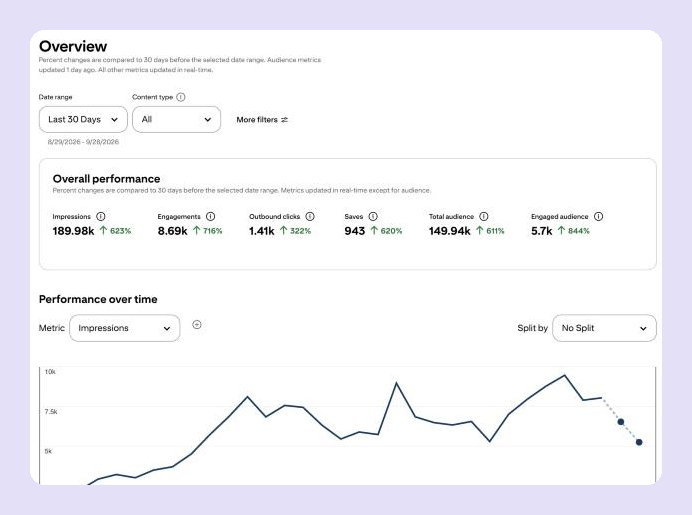
Here’s a real example. This is the overview for my fashion blog’s Pinterest account over the last 30 days: about 190,000 impressions, 1,410 outbound clicks and 943 saves.
What is Pinterest Analytics?
Pinterest Analytics is Pinterest’s built-in report on how your pins perform. When people search for analytics for Pinterest or Pinterest business analytics, this is the tool they mean. It comes free with a business account, and it covers your organic pins and ads. You can look at any date range from the past year and a half, plus real-time estimates for the last 48 hours.
Here’s how to see Pinterest analytics on desktop: open the menu at the top left and choose Analytics, then Overview. In the app, tap your profile picture, then the chart icon. If you don’t have a business account yet, start with my Pinterest business account setup guide. Claim your website too, so you can filter for pins that link to your store.
Which Pinterest metrics matter for an online store?
For a store, outbound clicks matter most, because they are the only Pinterest number that puts a shopper on your site. Here are the main Pinterest analytics explained in plain words, using Pinterest’s own definitions plus what I use each metric for.
| Metric | What Pinterest counts | What it tells a store |
|---|---|---|
| Impressions | The number of times your pins were on screen | Whether your keywords and boards get you seen |
| Saves | The number of times people saved your pin to a board | Interest. Shoppers often save now and buy later |
| Pin clicks | Clicks that open your pin in close-up | Whether the image makes people look closer |
| Outbound clicks | Actions that take people to a site off Pinterest | Real visits to your store. The most important one |
| Engagements | All saves, clicks and swipes added together | A general health check, but too mixed to act on |
| Total and engaged audience | People who saw or engaged with your pins | How many different people you reach |
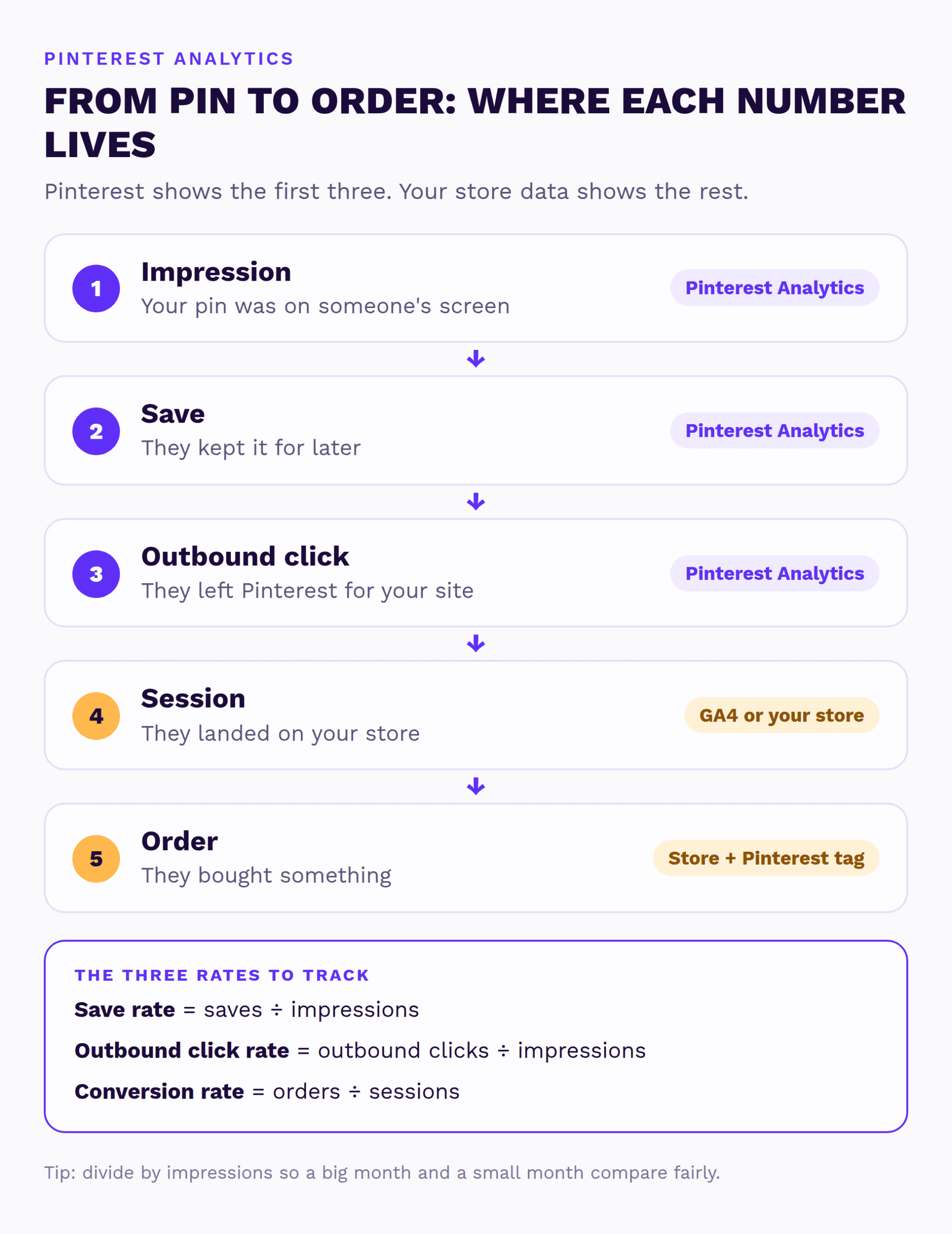
The rates matter as much as the totals. Outbound click rate is outbound clicks divided by impressions. It lets you compare a big month with a small one. In the example above, 1,410 clicks from 189,980 impressions is an outbound click rate of about 0.7%.
What are impressions on Pinterest?
An impression is one time your pin appeared on someone’s screen. Pinterest counts it when at least part of the pin is on screen for at least one second. The pin can show in the home feed, in search or on a board.
Impressions tell you if you’re being seen, not if you’re selling. Lots of impressions with few clicks usually means the pin gets shown, but doesn’t make people want to leave Pinterest. I cover the fixes in how to turn Pinterest impressions into store traffic.
People often ask what a good number of impressions is. There isn’t one number that fits every store. A candle shop and a furniture brand live in very different search markets. I compare an account to its own last 30 days, and I watch the click rate more than the total.
What does Pinterest Audience Insights show?
Audience Insights shows who sees and engages with your pins over the last 30 days. You get their top categories and interests, plus age, gender, location and device. You can compare your audience with all Pinterest users, so you can see which interests are stronger for your crowd.
For a store, I use it for two things. It shows if your pins reach the people who buy from you, and it gives you ideas for new boards and gift guides. Find it under Analytics, then Audience insights.
How to find the pins that actually send traffic
To find your best pins, sort the Top Pins table by outbound clicks instead of impressions. It sits under the chart on the Overview page. The pins with the most impressions are often not the ones that send visitors.
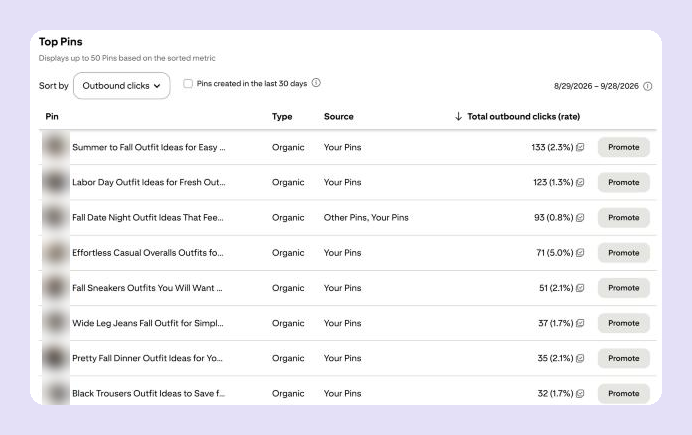
In my own account, the pin with the most impressions this month got 93 clicks at a 0.8% click rate. A pin with far fewer impressions got 71 clicks at 5.0%. The second pin is the one I’d make more versions of. For a store, do the same. Find the three pins with the best click rate, and make more pins for those products.
Can you see which pins bring orders?
I’ll look at your store and Pinterest myself and send a short report and video with the three fixes I’d make first. Free, within 1 business day, no call needed.
If your tracking isn’t right, my Setup Sprint fixes the Pinterest tag, your catalog and your boards in three weeks. Then you can see which pins bring in orders, not just clicks.
How to connect Pinterest analytics to sales
To see sales from Pinterest, look outside Pinterest Analytics. Pinterest can’t see your checkout unless the Pinterest tag is installed. There are three places to look, and I use all three.
1. Google Analytics 4
- Open Reports, then Acquisition, then Traffic acquisition.
- Change the table to Session source / medium and search for “pinterest”.
- Check sessions, key events and revenue for Pinterest. Compare them with the same dates last month.
Google explains this report in its traffic acquisition guide. To split organic pins from ads, add UTM tags to your ad links, such as a source of “pinterest” and a medium of “paid”.
2. Your store’s own reports
Shopify shows sessions and sales by referrer in its analytics reports. WooCommerce shows the source of each order with order attribution tracking. BigCommerce and Squarespace have similar traffic-source reports. Your store’s numbers won’t match GA4 exactly, and that’s normal.
3. Pinterest Conversion Insights
Conversion Insights shows page visits, add-to-carts, checkouts and revenue from Pinterest. It splits them into organic, paid, and paid with help from organic pins. It only works with a working Pinterest tag, and it only has data from the day the tag started working. So set up the tag first, even if you never run ads.
For the full picture of cost and return, see my guide to measuring Pinterest ROI for your store.
How to read Pinterest analytics without fooling yourself
Read your Pinterest analytics by comparing like with like: the same length of time, rates instead of totals, and organic pins apart from ads.
- Compare the same length of time. Pinterest compares your range with the one just before it, so 30 days against 30 days.
- Use rates, not only totals. A drop in impressions with a rise in click rate can still mean better pins.
- Filter by content type. Organic and paid numbers mixed together can hide what your free pins are doing.
- Filter by claimed account to see only pins that link to your store.
- Give new pins time. Pins keep getting seen for months, so a quiet first week doesn’t mean a pin failed.
Do you need a separate Pinterest analytics tool?
Most stores don’t need a separate Pinterest analytics tool. Pinterest’s own dashboard is free and shows every number that matters, and GA4 or your store shows the sales. Together they cover the whole path from pin to order.
Schedulers like Tailwind also show stats for the pins you post through them. I schedule pins with Tailwind, but I still make my decisions from Pinterest Analytics and the store’s own numbers. If a paid tool shows something those two can’t, it’s usually a nice extra, not a must.
My monthly Pinterest analytics check
Once a month, I run the same five checks for every account. It takes about twenty minutes.
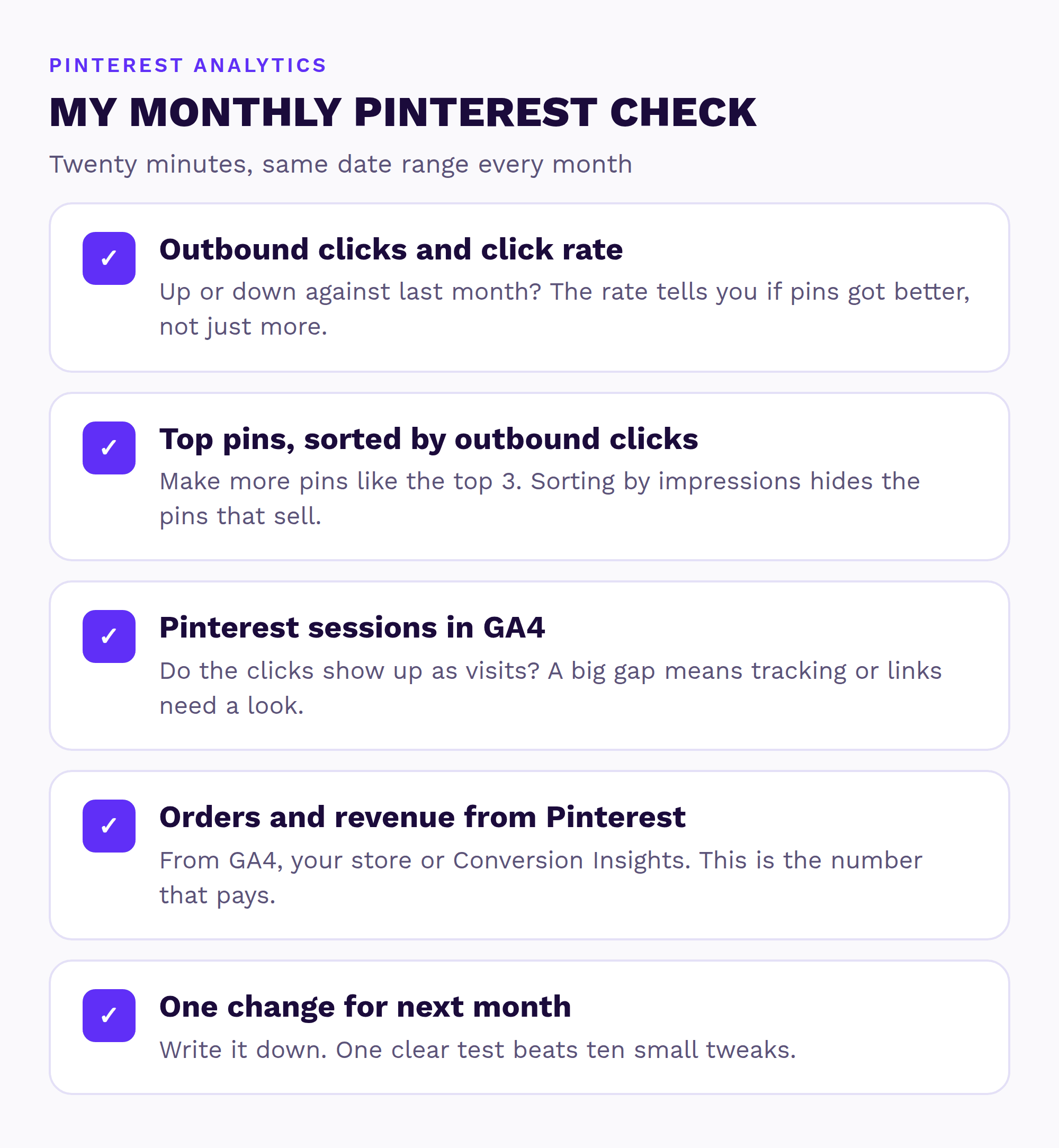
The last step is the one people skip. Pick one change for next month, like more pins for your best-clicking product. Then check it at the next review. For what to change, my guides on getting more Pinterest saves and the best time to post are good places to start.
Common Pinterest analytics mistakes
Most mistakes come from trusting the biggest number on the screen. These are the ones I see most:
- Celebrating impressions while outbound clicks stay flat.
- Sorting top pins by impressions, so the pins that sell stay hidden.
- Never checking GA4 or the store, so nobody knows if Pinterest makes money.
- Skipping the Pinterest tag, so Conversion Insights stays empty.
- Comparing a holiday month with a quiet month and panicking.
Key takeaways
- Pinterest Analytics is free with a business account and shows what happens on Pinterest.
- Outbound clicks and outbound click rate are the numbers that matter most for a store.
- Sort Top Pins by outbound clicks to find the pins that send visitors.
- Check sales in GA4, your store’s reports and Pinterest Conversion Insights.
- Run the same five checks each month and pick one change to test.
Analytics is the last step of the plan in my Pinterest marketing playbook for ecommerce.
Frequently asked questions
How do I see my Pinterest analytics?
On desktop, open the menu at the top left and choose Analytics, then Overview. In the app, tap your profile picture and then the chart icon. You need a free business account.
What does outbound click mean on Pinterest?
An outbound click is when someone leaves Pinterest to visit the link on your pin. For a store, it’s the most useful Pinterest metric, because it’s a real visit to your site.
What are impressions on Pinterest?
Impressions are the number of times your pins appeared on someone’s screen. They show that you’re being seen, but not that people are clicking or buying.
Can Pinterest Analytics show sales?
Only with the Pinterest tag installed. Then Conversion Insights shows checkouts and revenue from your pins. Without the tag, check sales from Pinterest in GA4 or your store’s reports.
Is there a free Pinterest analytics tool?
Yes. Pinterest Analytics is free with any business account. Add GA4, which is also free, to see the visits and sales your pins bring in.
How far back does Pinterest Analytics go?
You can pick custom date ranges from the past year and a half. Pinterest also shows real-time estimates for the last 48 hours.
Can someone check my Pinterest tracking for me?
Yes. Send me your store and I’ll check your Pinterest myself. Within 1 business day, you get a free Shelf Check: a short report and video with the three fixes I’d make first.
Sources