
Quick answer: a Pinterest catalog is your store’s product list, which Pinterest reads every day and turns into product pins that show up in search, the home feed and under related pins. If you’ve connected yours and your products still aren’t showing, it’s almost always one of three things: a required piece of product info is missing, the catalog has an error (Pinterest gives each one a number, which helps, kind of), or you’re looking for your products in a place they don’t live anymore. This guide shows you how to set it up properly and how to find which of those it is.
So you connected your store to Pinterest, you waited, you refreshed your profile about forty times (no judgment, we’ve all done the refresh dance), and your products are nowhere. Or maybe you haven’t connected anything yet because every guide out there either reads like a developer manual or is quietly trying to sell you a feed tool. Either way, you’re in the right place, and I promise to explain this like a normal person.
Catalogs are one of the most useful things Pinterest gives online stores for free, and they’re also one of the most confusing, mostly because Pinterest’s own help pages are spread across a bunch of different articles. So I’ve put everything in one place: what a catalog actually is, what you need before you start, how to connect it, and a step-by-step checklist for when your products refuse to show up. If you’re new to Pinterest for your store in general, my guide to Pinterest marketing for ecommerce is a good place to start before this one.
What a Pinterest Catalog Actually Is (And What It Isn’t)
A Pinterest catalog is a list of every product in your store (with the title, price, photo, link and whether it’s in stock) that Pinterest reads from your website on a schedule. Pinterest then turns each product into a product pin, which is a pin that links straight to that product’s page on your store. If your file lives at a link Pinterest can reach, it checks it every day, and if you’re on Shopify, the Pinterest app updates your products every 24 hours.

And here’s what a catalog is NOT: it isn’t ads. A lot of people avoid catalogs because they think connecting one means Pinterest will start spending their money, and it won’t. In Pinterest’s own words, “We will not advertise your products until you choose to create ads.” Your product pins get shown to people for free, and if you ever want to put money behind them, shopping ads are a separate choice you make later (or never, totally fine).
What You Need Before You Start (The Boring-But-Important Checklist)
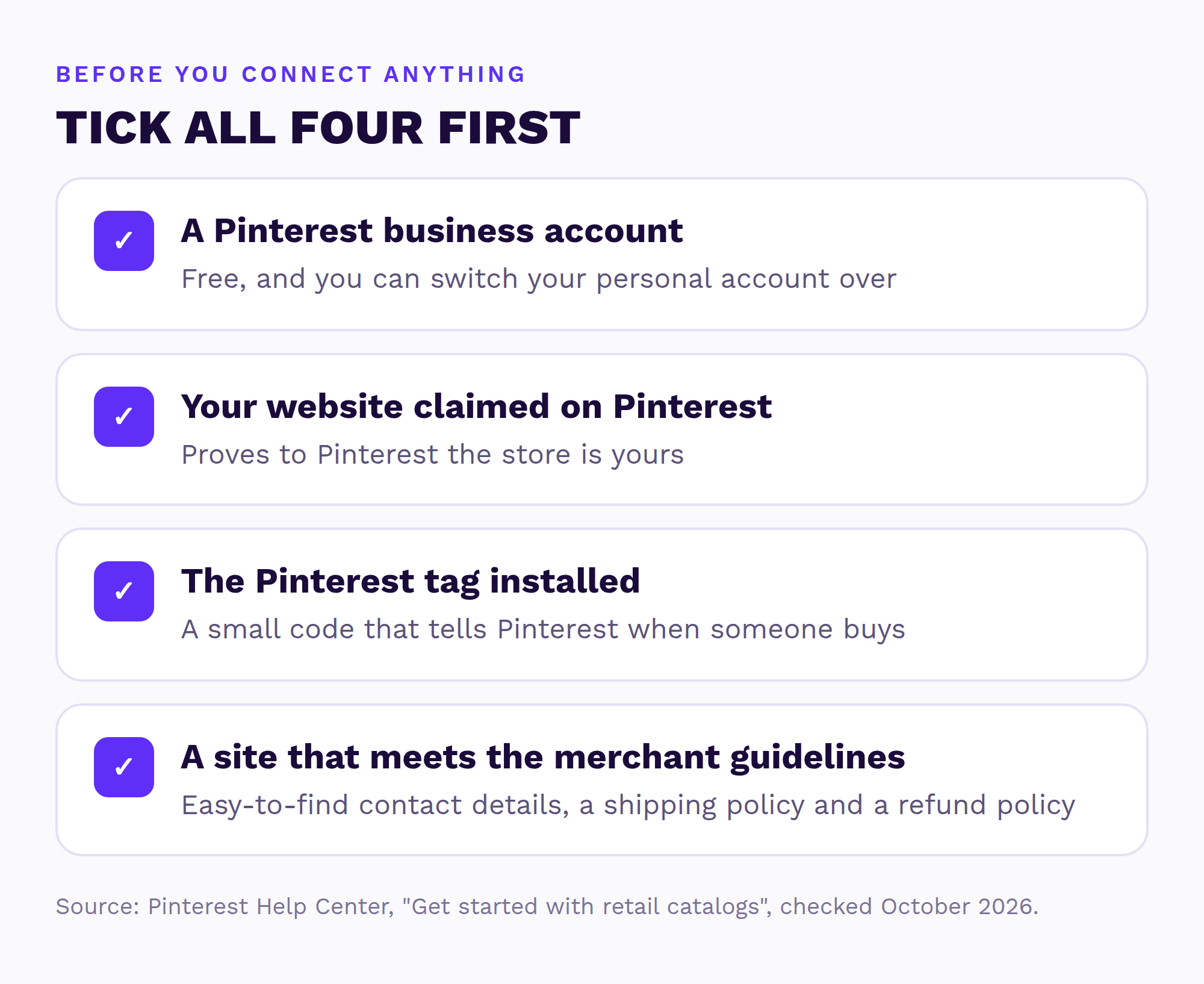
Pinterest has four requirements before it will even look at your catalog, and skipping one of them is an easy way to get stuck before you’ve even begun.
- A Pinterest business account. It’s free, and you can switch a personal account over in a few clicks. My Pinterest business account guide walks you through it.
- Your website claimed on Pinterest. This proves to Pinterest the store is actually yours. If you’ve set up rich pins, you’ve probably done this already.
- The Pinterest tag installed. The tag is a small piece of code that tells Pinterest when someone visits, adds to cart or buys. The Shopify and WooCommerce apps add it for you, and my Pinterest analytics guide explains how to check it’s working.
- A website that meets Pinterest’s merchant guidelines. In plain words: easy-to-find contact details, a shipping policy and a refund policy. If any of those are hiding three clicks deep in your footer, move them somewhere obvious.
How to Connect Your Pinterest Catalog, Step by Step
How you connect your catalog depends on where your store lives, so find yours below and skip the rest (I won’t be offended).
If You’re on Shopify
- Install the free Pinterest app from the Shopify App Store and connect your Pinterest business account. Only one Pinterest business account can be linked to each Shopify store, so pick the right one.
- Let the app sync. Your products update every 24 hours, and your Shopify collections sync every 48 hours and show up in Pinterest as product groups (which you can use later to sort products, or for ads if you ever go there).
- Check it worked: in Pinterest, open the menu, go to Manage business, then Catalogs and product groups, and pick your catalog.

If You’re on WooCommerce
Use the official Pinterest for WooCommerce plugin. It does the same jobs as the Shopify app: it builds your product feed, sends it to Pinterest and adds the tag. Connect your business account inside the plugin settings, then check your catalog in Pinterest the same way as above.
If You’re on Anything Else
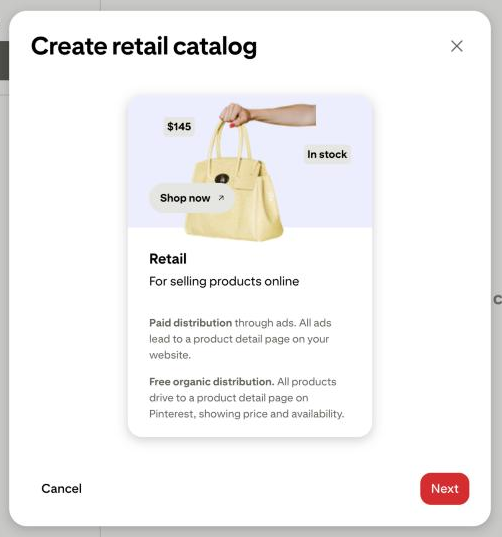
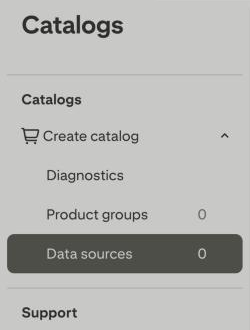
You can add your products as a “data source”, which is just Pinterest’s name for your product file. Pinterest accepts CSV, TSV and XML files, as well as Google Sheets, and if your file sits at a link on your website, Pinterest picks up the changes every day on its own. You start from the Catalogs page in your Pinterest business account, where the first screen asks you to create a retail catalog.
The 8 Fields Pinterest Won’t Budge On
Every product in your catalog needs eight pieces of information, and this is the part people skip and then wonder why nothing works. Pinterest is very clear about it: if these fields are “missing, or formatted incorrectly, your entire retail catalog will fail ingestion”. Ingestion is just Pinterest’s fancy word for “reading your file”, and failing it means none of your products show. Not some of them. NONE.
| Field | What it means in plain words |
|---|---|
| id | Your own code for the product, the one in your store |
| title | The product name shoppers see |
| description | What it is: size, material, color, care |
| link | The product page on your store |
| image_link | The main product photo |
| price | The price, with the currency |
| availability | In stock, out of stock or preorder |
| item_group_id | A shared code that groups the sizes and colors of the same product |
If you’re on Shopify or WooCommerce, the app fills these in from your product pages for you, which is good news, but it can only copy what’s there. An empty description in your store is an empty description on Pinterest.

Pinterest Catalog Connected but Your Products Aren’t Showing? Here’s Why
This is the bit you probably came for. Work through these in order, because they go from the most common (and easiest) to the least common.
- It’s still processing. Open your catalog in Pinterest and look at its status before you change anything. If you’ve only just connected it, give it time, because Shopify products update on a 24-hour cycle.
- There’s an error stopping products from being published. Open Diagnostics in the Catalogs menu. Errors there mean those products won’t show at all. The common ones are in the table below.
- There’s a warning limiting how often they show. Warnings don’t block products, but they can hold them back. The usual suspect is a missing or vague product category.
- They’re live, you’re just looking in the wrong place. Product pins don’t automatically appear on your Pinterest profile. Pinterest says that to show them there, “you’ll need to save them to a public board”. More on this in the next section.
- Your website breaks the merchant guidelines. Go back to the checklist above and make sure your contact details, shipping policy and refund policy are easy to find.
- You sell in more than one country. If you use Shopify Markets, you’ll need Pinterest feed profiles that match your markets, and you can only have 20 of them, so some markets might be left out.
- The app lost its connection. If your catalog or tag stopped updating, use the Reset button in the Pinterest app settings. Pinterest recommends this over uninstalling and reinstalling, so please step away from the delete button.

And here are the error and warning codes you’re most likely to see in Diagnostics, translated into human:
| Code | What it means | How to fix it |
|---|---|---|
| 100 | Pinterest couldn’t download your product file | Check the file link works and doesn’t need a password |
| 112 | Some products have no availability | Mark each one in stock, out of stock or preorder |
| 151 | A product has no price | Add the price |
| 4042 | The product breaks the merchant guidelines | Remove it from the feed, or fix what breaks the rules |
| 157 | Missing product category (may limit visibility) | Add a category from Google’s product category list |
| 126 | Product category isn’t detailed enough | Add every level of the category, not only the top one |
| 179 | The GTIN (barcode number) is in the wrong format | Use 8, 12, 13 or 14 digits with no dashes |
| 182 | The sale price is much lower than the normal price | Check the sale price is correct |
Pinterest’s full list lives in its data source error messages help page, and if you’re on Shopify, its Shopify app troubleshooting page is worth a bookmark too.
Products still not showing?
I’ll check your catalog and Pinterest account myself and send a short report and video with the three fixes I’d make first. Free, within 1 business day, no call needed.
Where Your Product Pins Actually Show Up Now
This is where a LOT of confusion comes from, because older guides (including, ahem, an earlier version of this one) still talk about a “Shop” tab on your Pinterest profile. That tab was removed back in 2023. Your product pins didn’t disappear with it. They show up in Pinterest search, in people’s home feeds and under related pins, which is where shoppers find products anyway. If you want them on your profile too, save them to a public board, because that’s the only way Pinterest shows them there.
What about price? Pinterest’s own catalog setup screen says products get “free organic distribution”, driving “to a product detail page on Pinterest, showing price and availability”. That said, store owners in Pinterest’s community forum report that the price only shows on product pins for stores in the Verified Merchant Program, and Pinterest hasn’t spelled this out in its help pages, so treat that one as “reported, not confirmed”.
Make Your Pinterest Catalog Worth Having (Quick Wins)
Getting your products to show is step one. Getting them to show to the right people is where the money is, and most of that comes down to the product info you already control.
- Use real product titles, not codes. Nobody searches for “OAK-TBL-180-NAT”. People search for “solid oak dining table”, so put the words they’d actually type into your title.
- Fill in the product category. It clears warnings 157 and 126 and helps Pinterest show your products in the right searches. Use Google’s product category list, the same one Pinterest uses, and go as specific as it lets you.
- Use lifestyle photos where you can. Your catalog pins use your product photos, so a table in a styled dining room gives people a reason to stop scrolling. My guide to designing pins that get clicked has more on this.
- Group your variants. Give all the sizes and colors of one product the same item_group_id so Pinterest knows they belong together.
- Watch out for sold-out products in ads. If a product is part of an active ad campaign, Pinterest will keep promoting it even when it’s out of stock, so pause or update those campaigns.

Pinterest Catalog FAQ
How often does Pinterest update my catalog?
If your product file is hosted at a link, Pinterest checks it every day. On Shopify, the Pinterest app updates your products every 24 hours and your collections every 48 hours.
Is a Pinterest catalog free?
Yes. The Pinterest app for Shopify is free to install, and Pinterest won’t advertise your products unless you choose to create ads. Your product pins are shown organically for free.
Do I need to run ads for my products to show?
No. Pinterest describes catalogs as “free organic distribution”, and ads are a separate, optional extra.
Do I need a Pinterest business account?
Yes. A business account, a claimed website and the Pinterest tag are all required before you can create a catalog.
Why doesn’t my product pin show a price?
First check the price field is filled in and formatted correctly, since error 151 means the price is missing. If it’s all correct, store owners report that price display is linked to the Verified Merchant Program, though Pinterest hasn’t confirmed this in its help pages.
What’s the difference between a catalog, product pins and rich pins?
The catalog is your full product list. Product pins are the pins Pinterest makes from it, one per product. Rich pins are something else: they pull extra info from your website onto pins you save yourself. You can (and should) use both, and my rich pins guide covers the setup.
How many products can a Pinterest catalog hold?
Up to 20 million products per retail catalog, so unless you’re secretly running a department store, you’re fine.
Can someone check my Pinterest catalog for me?
Yes. Send me your store and I’ll check your Pinterest and catalog myself. Within 1 business day, you get a free Shelf Check: a short report and video with the three fixes I’d make first.
Rather not untangle this yourself?
Send me your store and I’ll look at your Pinterest and catalog myself, then send a short report and video with the three fixes I’d make first. Free, within 1 business day, no call needed. If your catalog, tag and boards need a proper sort-out, my Setup Sprint fixes all three for you.
Sources (checked October 2026)
- Pinterest Help Center: Get started with retail catalogs
- Pinterest Help Center: Troubleshoot data source error messages
- Pinterest Help Center: Troubleshoot the Pinterest for Shopify app
- Pinterest Help Center: Shopping on Pinterest
- Pinterest: Merchant guidelines
- Shopify App Store: Pinterest
- Tori Tait: The Pinterest profile Shop tab is going away (2023)
- Pinterest Business Community: Product pins aren’t showing the price